Read the original Japanese article. This English edition updates the app details and mobile connection instructions as of October 2026.
Walking around with a half-open MacBook
I kept seeing posts like this one, this one, and this one: people trying to keep their AI agents working while they moved from one place to another.
I was doing it too, carrying a half-open MacBook through train stations, buildings, and residential streets.
A MacBook normally sleeps when you close its lid. If Claude Code, Codex, or another agent is running locally, that interrupts its work. But waiting for an agent should not mean being stuck in the same chair. Sometimes you need to change trains, move to another meeting room, leave a café, or respond to someone calling you over.
The result is a person hurrying down the street while carefully holding a laptop half open. It is probably not a reassuring sight.
There are other ways to keep agents available: SSH, tmux, a Mac at home, or a server. But SSH connects you to another machine, and tmux keeps a terminal session alive. Neither, by itself, keeps a job running on your local MacBook while that Mac sleeps. They work well if the job already lives on an awake remote machine. They do not solve the case where you suddenly have to move while working in an environment that exists only on the laptop in front of you.
For a while, I thought carrying a half-open laptop was a sign of living on the cutting edge. Eventually, I started to think it just looked ridiculous. So I built a tool that lets me close the lid and keep working on the same Mac.
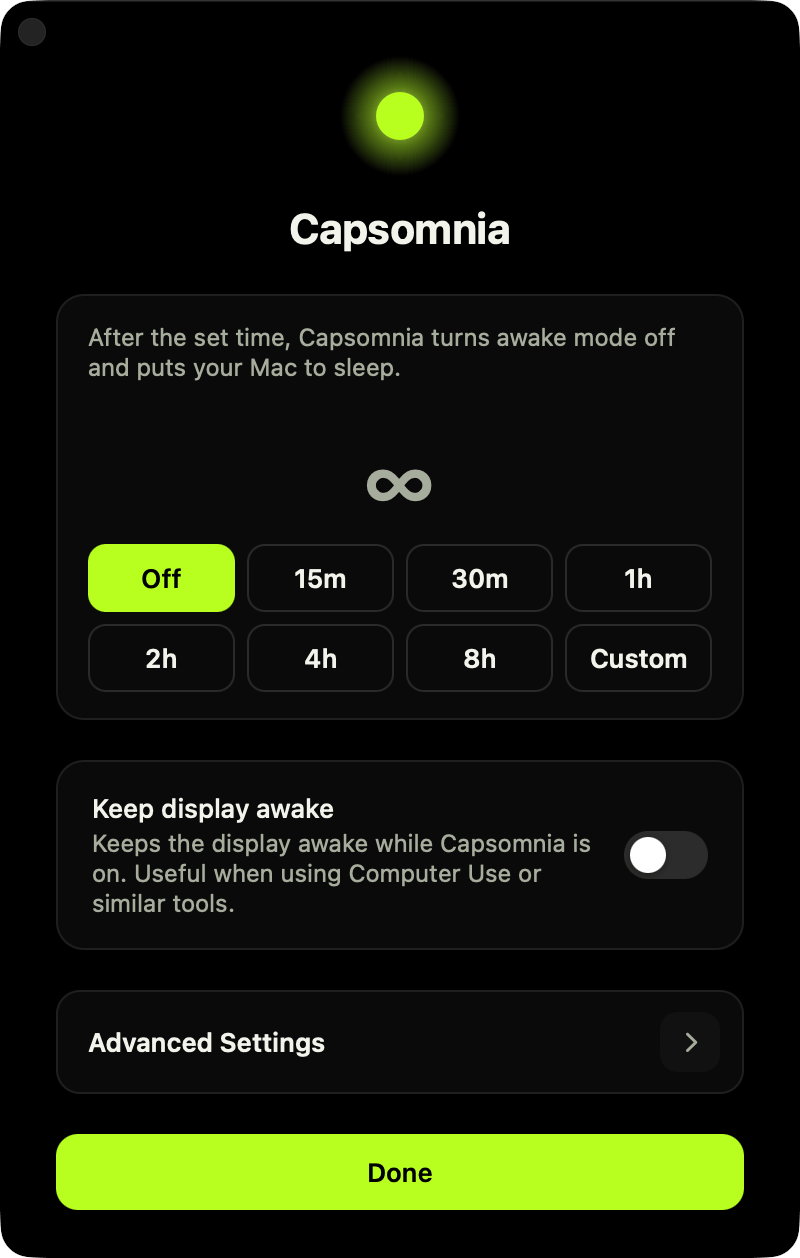
It is called Capsomnia, and it is free and open source. You can find it on GitHub or at capsomnia.com.
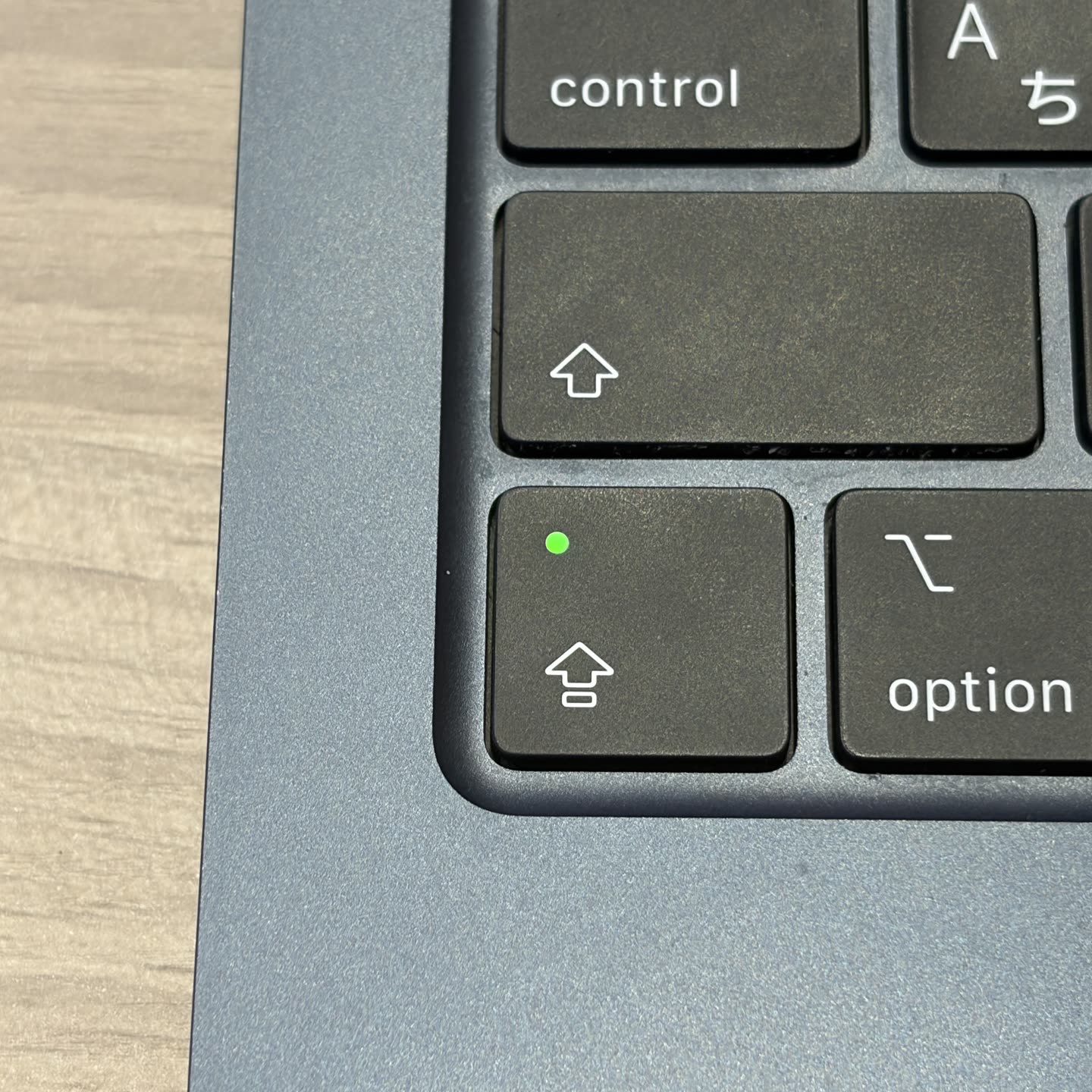
The little green light in the cover photo is its status indicator: Caps Lock on means sleep prevention is on.
Keeping the work running
macOS includes caffeinate, a command for temporarily preventing sleep:
caffeinate
It is useful for long jobs with the lid open. The problem I wanted to solve was keeping work running with the lid closed. Ordinary caffeinate assertions are not something I can rely on for that case.
Capsomnia instead changes the disablesleep setting through pmset, according to the state of Caps Lock. These are the underlying commands executed by its privileged helper:
# Caps Lock on
pmset -a disablesleep 1

# Caps Lock off
pmset -a disablesleep 0
Turning Caps Lock on enables sleep prevention. Turning it off restores normal sleep behavior.
I also added a way to put the display to sleep while the processing continues, so that closing the lid does not leave the screen lit unnecessarily:
pmset displaysleepnow
The app reads the lid state from AppleClamshellState through IOKit.
Keeping privileged operations small
Changing system sleep settings requires administrator privileges. I did not want the entire app to run as root, so the app runs as the signed-in user and delegates the privileged operations to a small, root-owned helper.
The sleep-control operations are:
/Library/PrivilegedHelperTools/capsomnia-pmset on
/Library/PrivilegedHelperTools/capsomnia-pmset off
/Library/PrivilegedHelperTools/capsomnia-pmset display-sleep
The current helper also has three fixed operations for the Caps Lock indicator: indicator-hide, indicator-show, and indicator-restore. Its sudoers rule permits those six exact invocations. The helper is a compiled executable with a fixed set of accepted operations; it does not expose arbitrary shell commands or arguments. The security documentation describes that boundary.
Capsomnia requires no account and collects no telemetry. The original article described it as making no network requests. That has changed: current versions can check GitHub for updates, download installers when requested, and optionally send local gateway probes to help keep a hotspot connection active. The current README documents those features and their settings.
The source, helper, package build scripts, and uninstall scripts are public. Release packages are signed with Developer ID and notarized by Apple.
Why Caps Lock?
I could have put a switch in a settings window or added a menu bar button. I chose Caps Lock because it already had everything I needed:
- A physical key I could press immediately.
- An LED that showed whether it was on or off.
- Very little competition for its use in my own workflow.
When I need an agent to keep working while I move, I turn Caps Lock on. When I want normal sleep behavior back, I turn it off.
The keyboard already had a physical status display. I did not need to invent another one. Capsomnia can also hide its menu bar icon, so checking the state does not have to take up space on the screen.
I finally found a job for a key I almost never used.
Checking progress from my phone
Capsomnia keeps the Mac awake. Being able to check an agent's progress or send another instruction from my phone makes the setup much more useful.
I use Codex mobile access for that. In the current ChatGPT desktop app, open Settings → Connections → Control this Mac, start setup, and scan the displayed QR code with your phone. Finish pairing in ChatGPT using the same account and workspace. The connected Mac then appears under Codex on iOS, or Remote in versions that still use that label. OpenAI's setup guide has the current instructions.
Once paired, my workflow is:
- Give Codex a task on the Mac.
- Keep the Mac online, using my phone's hotspot when needed.
- Turn Caps Lock on.
- Close the MacBook and move to where I need to be.
- Check progress or send follow-up instructions from my iPhone.
The distinction matters: tmux maintains a terminal session, Capsomnia keeps the Mac awake, and mobile access lets me interact with the agent. Network connectivity still has to be available.
ChatGPT also has a setting to keep a plugged-in Mac awake. Its official guidance for a closed MacBook calls for an external display as well. Capsomnia addresses the case where I want to keep local processing running with the lid closed and no external display attached.
Keeping a closed MacBook running can increase heat and battery use. I need to consider ventilation, available power, and how long the job will run; closing the lid does not make those concerns disappear.
Where it helps
Moving between places
If I have already handed a task to an agent, I want it to continue while I travel. With Capsomnia enabled and a working hotspot connection, I can keep the laptop closed and use the phone to check in or give another instruction.
Having to leave immediately
Sometimes I am working at a café, university, or the office and suddenly need to go somewhere else. Waiting another ten minutes for a process to finish is not an option.
Turning Caps Lock on lets me close the MacBook and leave without intentionally suspending the job. I can follow its progress from my phone.
Standing on a train
I often plan to work on a train and then fail to get a seat. I can leave a task with the agent, close the MacBook, hold it securely, and use my phone when I need to check something.
That is much better than standing there trying to balance a half-open laptop with one hand.
A physical switch that feels natural
Capsomnia turns Caps Lock into a physical switch for keeping a Mac awake:
- On enables sleep prevention for work with the lid closed.
- Off restores normal sleep behavior.
- The LED shows the state without opening a window.
- The menu bar icon can be hidden.
- No account or telemetry is required.
- The app is free and open source, with signed and notarized release packages.
It started with a small frustration: I did not want to hold my MacBook half open until an AI agent finished. Using Caps Lock turned out to feel more natural than I expected. A physical button with a light was exactly what the job needed.
Back to Blog