When you look back on your day, it is easy to forget where you stopped and how long you spent at each place. At the same time, logging every visit by hand rarely lasts for long.
This guide shows how to export your daily location log to Notion using Silica, an iPhone app that automatically records your visits and stay durations once the required permissions are configured.
Recording Visits with Silica
First, here is an overview of what Silica records and exports, and what each plan includes.
How Silica Works
Once you configure the required permissions such as location access, Silica automatically records the places you visit and how long you stay on iPhone. Recorded history can be viewed in a daily timeline inside the app and exported to Markdown or Notion.
Free vs. Silica Pro
Automatic recording after setup, viewing the last 31 days of history (including today, back to 30 days ago), and manual export to Notion or Markdown for dates within that range are available for free. Silica Pro is required if you want automatic export of the previous day's log to Notion or want to view or manually export logs earlier than the last 31 days (including today) in the app.
| Feature | Free | Silica Pro |
|---|---|---|
| Automatic visit and stay-duration logging | Included | Included |
| In-app timeline history | Last 31 days (including today) | Dates earlier than the last 31 days (including today) also accessible |
| Manual export to Notion and Markdown | Included (last 31 days, including today) | Included (dates earlier than the last 31 days, including today, also selectable) |
| Automatic previous-day export to Notion | Not included | Included |
You can start on the free plan with manual export to see how daily pages fit your Notion setup, then enable Pro's automatic export if you want to skip manual syncing.
What Gets Logged in Notion
Before setting things up, here is how a synced day of visits exported from Silica looks inside Notion.
Daily Page Structure
When Silica exports a day to Notion, it creates a subpage under your chosen parent page (Silica Visit Log in the example below) with a YYYY-MM-DD title such as 2026-11-26.
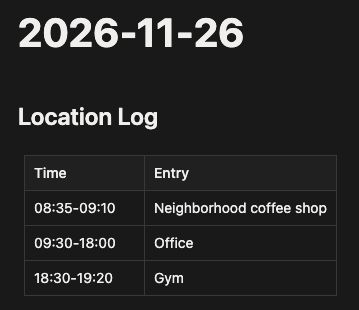
Inside that page, a Location Log heading lists your stops chronologically across two columns, Time and Entry (the screenshot above uses fictional visit data).
| Time | Entry |
|---|---|
| 08:35-09:10 | Neighborhood coffee shop |
| 09:30-18:00 | Office |
| 18:30-19:20 | Gym |
Because each row pairs a time range like 08:35-09:10 with a place such as Neighborhood coffee shop, you can read both the sequence of your stops and how long you stayed—for example, 35 minutes at the coffee shop. Organizing logs into one subpage per date makes any day easy to revisit later.
Keeping Personal Notes Separate
Re-syncing the same date to the same destination updates and replaces the existing YYYY-MM-DD page body rather than creating a duplicate page.
If you want to add personal notes or daily reflections in Notion, write them on a separate Notion page instead of editing the synced page directly.
Connecting Silica to Notion
Next, configure background location access on your iPhone and connect a destination page in Notion.
Preparation
Completing two steps beforehand keeps your workspace organized:
- Set Location to Always: In iPhone Settings, set Silica's Location permission to Always so visits can be recorded in the background.
- Create a parent page in Notion: Create one dedicated parent page in Notion—such as
Silica Visit Log—so eachYYYY-MM-DDsubpage stays grouped in one place.
Authorizing Notion
-
In Silica, open Export, choose Notion under Destination, and tap Connect Notion.
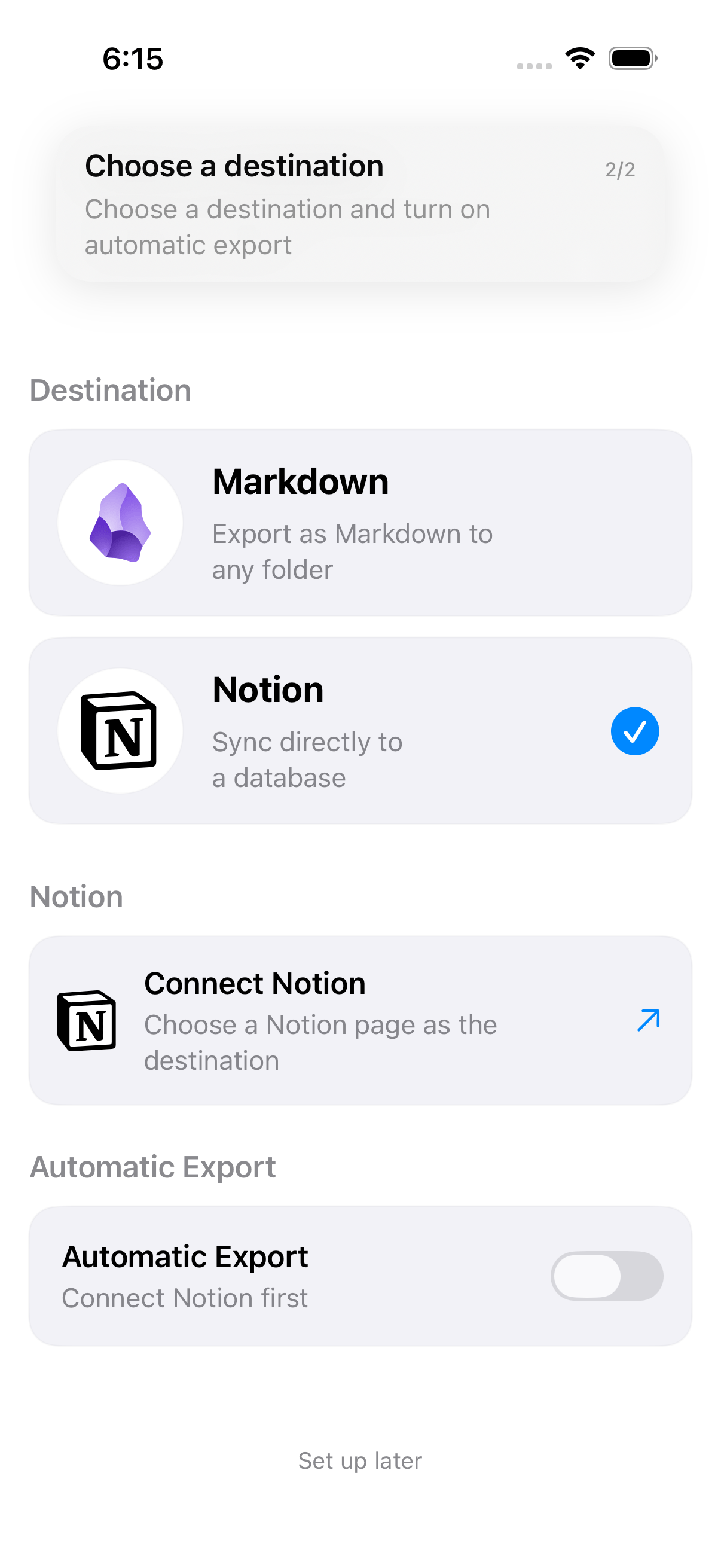
Silica’s first-time setup screen. The Export tab uses the same Connect Notion button. -
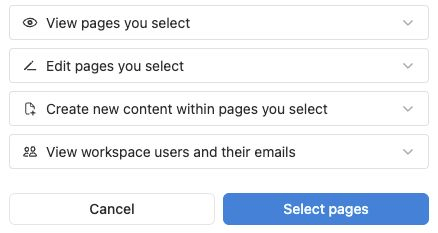
In Notion, check your workspace and tap Select pages.
-
Choose the parent page you created, then select Allow access.
Choosing a Destination Page
Back in Silica, tap Choose a destination and pick the shared parent page (Silica Visit Log in this example).
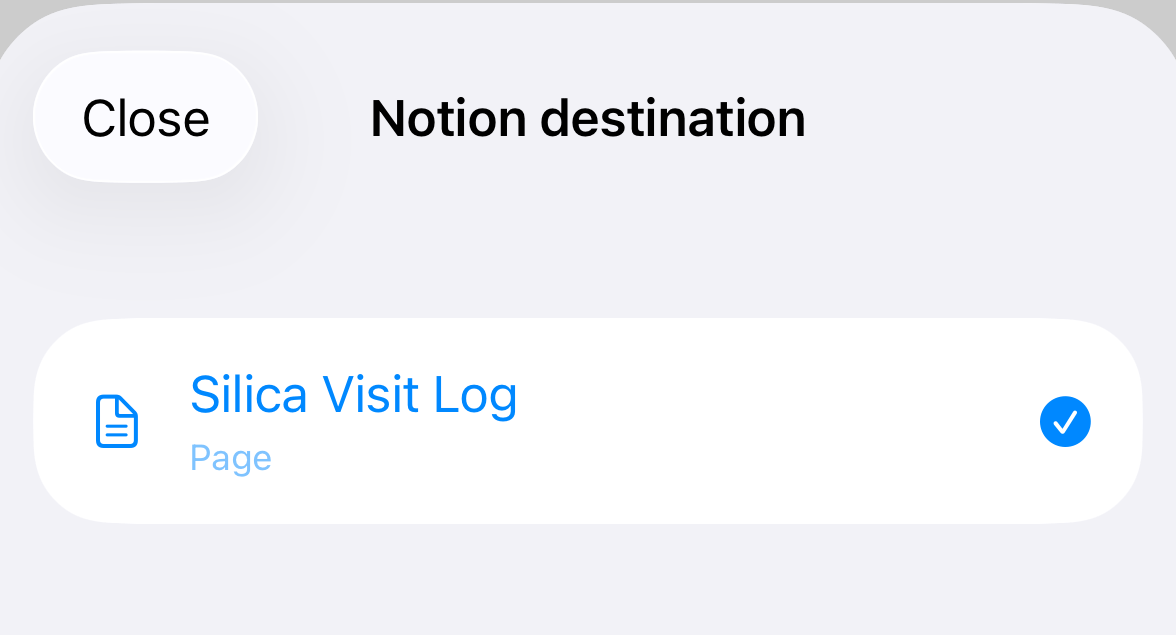
Once Silica Visit Log appears under Notion destination, the integration is ready.
Syncing Your Logs to Notion
With your destination configured, you can send logs to Notion either manually or automatically.
Manual Export
Use manual export on the free plan or whenever you want to send a specific date on demand within the range your plan allows you to view and select. Because the export screen's date picker uses the same history limit, the free plan can manually export dates from the last 31 days (including today, back to 30 days ago), while Silica Pro is required to select and export dates earlier than the last 31 days (including today).
Open the Export tab in Silica, choose a date in the Manual Export section, and tap Sync to Notion to create (or update) that day's YYYY-MM-DD subpage.
Automatic Export
To skip manual syncing, Silica Pro offers Automatic Export. Make sure Notion is connected and a destination is chosen, then turn on Automatic Export.
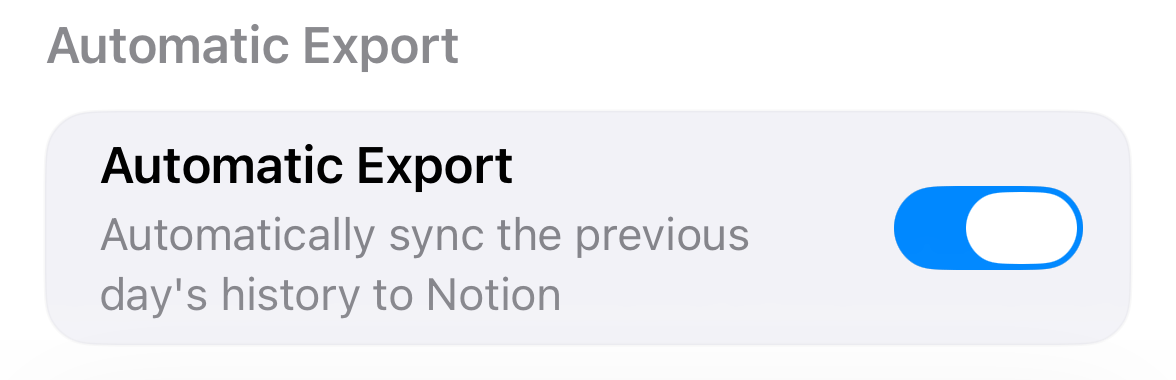
When enabled, Silica processes the previous day's visits and syncs them to Notion when the app gets an opportunity to run, such as when you open it. If a subpage for that date already exists at the same destination, its content is updated rather than duplicated.
Sync Timing and Past Dates
Keep two details in mind when using Automatic Export:
- When syncing happens: Silica does not push visits immediately after each stop or guarantee syncing at a fixed clock time. If yesterday's page has not appeared in Notion yet, open Silica to let it process.
- Older dates: For new setups, logs from the day you enable Automatic Export onward become eligible starting the next day. Earlier days are not imported in bulk, so use Manual Export to send older dates within the range your plan allows you to view and select (the last 31 days including today—back to 30 days ago—on the free plan; dates earlier than the last 31 days including today are also selectable with Silica Pro).
Summary
Logging every stop manually is hard to sustain, but combining automatic iPhone visit recording with Notion export lets you maintain a clean YYYY-MM-DD record of where you went and how long you stayed.
To get started:
- Set Silica's Location permission to Always in iPhone Settings.
- Create a dedicated parent page in Notion, connect Notion in Silica, and select that page as your destination.
- Try free Manual Export to check how daily pages look, and enable Automatic Export in Silica Pro if you want yesterday's log synced without daily manual steps.
Keep personal reflections on a separate Notion page so re-syncing never overwrites your notes, and let the synced daily subpages handle your location history automatically.