To stop your Mac from sleeping during a download or build, open Terminal and run caffeinate -i. Press Control-C when you are done. The screen can still turn off while the Mac stays awake.
Closing a MacBook lid is a different case. Use clamshell mode with an external display, or consider pmset or Capsomnia when you need to run a job with the lid closed and no monitor attached. This guide covers both, along with the built-in macOS settings.
The important distinction is that turning off the display is different from putting the Mac to sleep. Pick the method that matches what you need, then make sure you know how it ends.
How to stop your Mac from sleeping: choose a method
| What you need | Best fit | How it ends |
|---|---|---|
| Keep the display on while you work | Lock Screen settings or caffeinate -d | Change the setting back, or stop the command |
| Let the display turn off but keep a Mac awake on power | Battery settings | Turn off the option when you no longer need it |
| Keep a short task running with the lid open | caffeinate -i or a timed command | Press Control-C, or wait for the timer or command to finish |
| Use a closed MacBook with a monitor | Clamshell mode | Open the lid or disconnect the setup |
| Carry a closed MacBook while it stays awake | pmset or Capsomnia | Restore sleep manually, or turn off the app's awake mode |
Change Mac sleep settings in System Settings
On a Mac laptop, open Apple menu → System Settings → Battery → Options, then turn on Prevent automatic sleeping on power adapter when the display is off. This keeps the Mac from automatically sleeping while it is connected to power and its display is off. It does not mean you can close the lid and put the Mac in a bag while work continues.
To control when the screen goes dark, open System Settings → Lock Screen and adjust Turn display off on battery when inactive or Turn display off on power adapter when inactive. The wording and available controls can vary by Mac model and macOS version. Apple documents these sleep and display controls in its Mac sleep and wake settings guide and Battery settings guide.
On a desktop Mac, look under System Settings → Energy for Prevent automatic sleeping when the display is off. Available controls depend on the model and macOS version.
These settings work well when the Mac stays open on a desk. They are also the simplest choice if you do not want to leave a Terminal command running. They are not a lid-closed mode.
Use the caffeinate command on Mac
caffeinate is included with macOS. Run it in Terminal to create a temporary sleep-prevention assertion. Without options, it prevents idle system sleep. Add -i to make that intention explicit:
caffeinate -i
The command stays active until you stop it with Control-C or close the Terminal session. To keep the display from sleeping as well, use -d:
caffeinate -d
Use -t to set a duration in seconds. This example lasts for one hour:
caffeinate -i -t 3600
You can also tie the assertion to a command, so it ends when that command exits:
caffeinate -i your-command
Replace your-command with the command you want to run, including its arguments. For a command that is already running, -w waits for a process ID and releases the assertion when that process exits:
caffeinate -i -w 12345
Replace 12345 with the process ID. These options control idle sleep while macOS honors the assertion. They are useful for downloads, exports, and builds when the Mac stays open. They do not provide a reliable way to override a MacBook's closed-lid sleep behavior.
Use MacBook clamshell mode with an external display
If you want to work with a closed MacBook at a desk, use the normal closed-display, or clamshell, setup. Connect an external display, connect power (unless the display or dock supplies power), and use an external keyboard and mouse or trackpad. Apple lists a connected power source and external keyboard and mouse as requirements in its external display troubleshooting guide.
This is intended for a desk setup where you use the external display. It is different from putting a closed MacBook in a backpack and expecting it to keep working. If you only need a process to continue while the MacBook stays open, caffeinate is usually simpler.
Keep your Mac awake with the lid closed and no monitor
For a closed-lid setup without an external display, macOS's pmset command can disable sleep system-wide. This requires administrator access:
sudo pmset -a disablesleep 1
To restore normal sleep behavior, run:
sudo pmset -a disablesleep 0
The setting persists after you close Terminal or restart a command. That makes it easy to forget. Restore it as soon as you are done, and check the setting before carrying the MacBook in a bag. Keeping a closed Mac awake can increase heat and battery use; give it airflow and use a stable power source when appropriate. Do not leave it running unattended in a place that traps heat.
Use Capsomnia to control closed-lid sleep
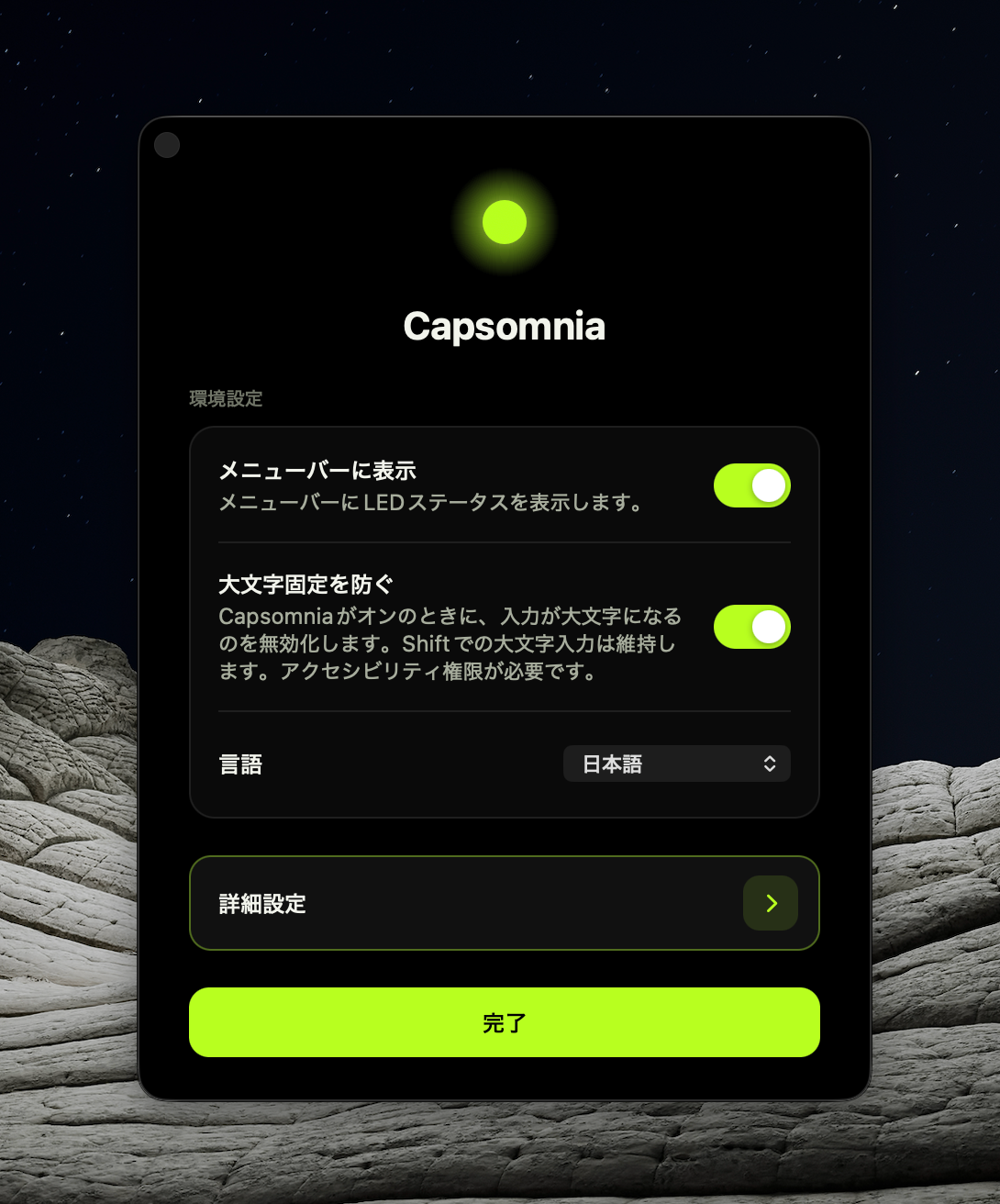
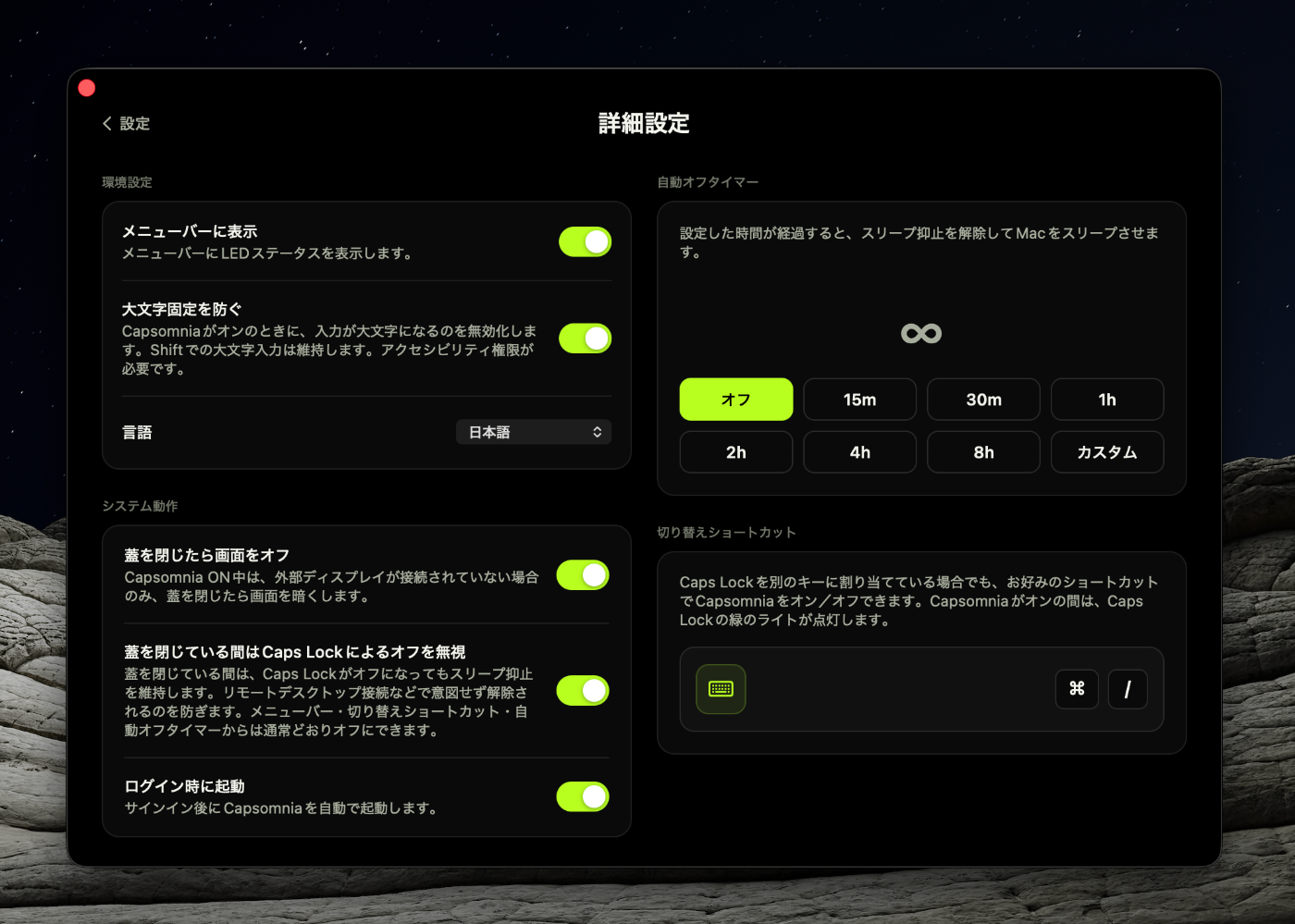
I build Capsomnia, an open-source macOS app that uses the Caps Lock key as a visible keep-awake switch for closed-lid MacBook work. Turn Caps Lock on to keep the Mac awake; turn it off to restore normal sleep behavior. It also offers an optional timer that turns awake mode off and requests sleep when the timer expires. Review the current requirements and usage notes in the Capsomnia project on GitHub before installing it.
The app is useful when you need a closed MacBook to continue a local job, remote session, or AI coding task and want a visible state or automatic shutoff. As with pmset, keeping a closed laptop awake can increase heat and battery use. The project documents compatibility limits, so check whether your Mac and macOS version are supported and do not treat it as a guarantee for critical work.
The screenshots below show Capsomnia's Japanese-language interface.
Common situations
A download or build needs another hour
Keep the Mac open and run caffeinate -i -t 3600 in Terminal. If you want the screen to stay on too, use caffeinate -di -t 3600. A timer is useful when you know roughly how long the task needs; for a specific command, tie caffeinate to that command instead.
Keep your Mac awake with the screen off
If the Mac is plugged in, enable Prevent automatic sleeping on power adapter when the display is off in Battery options. For a temporary Terminal session, use caffeinate -i and let the display follow its normal Lock Screen timeout.
You want to close the MacBook and keep working at a desk
Use clamshell mode with an external display, power, and external input devices. If you need the Mac to run while closed without a monitor, use pmset or Capsomnia and take care to restore normal sleep afterward.
You want to carry a closed MacBook while a job runs
This has more risk than leaving the Mac open: you cannot see the display or easily notice heat. Use an automatic end time if possible, keep the laptop out of enclosed or insulating places, and do not depend on sleep prevention for a critical job without another way to check its progress.
Frequently asked questions
Does caffeinate stop a MacBook from sleeping when I close the lid?
Do not rely on it for that. caffeinate is designed to prevent idle sleep and, with -d, display sleep. Closing the lid follows separate laptop behavior. Use clamshell mode for an external-display setup, or a closed-lid method such as pmset or Capsomnia when that is what you need.
Can I keep a Mac awake while the display is off?
Yes. On a laptop connected to power, enable Prevent automatic sleeping on power adapter when the display is off under System Settings → Battery → Options. For a temporary Terminal command, caffeinate -i prevents idle sleep while allowing the display to turn off according to its settings.
Why is caffeinate not working?
First check what stopped: the display, the Mac itself, or the job. caffeinate -i allows the screen to turn off; use -di if you need the screen on as well. Keep the Terminal session running, check whether a -t timer or wrapped command has ended, and keep the lid open. Sleep prevention does not fix a disconnected network or a failed app.
How do I undo pmset disablesleep 1?
Run sudo pmset -a disablesleep 0. The change persists independently of the Terminal window, so running another command or closing Terminal will not undo it.
Will keeping my Mac awake guarantee a download or remote job finishes?
No. It only changes sleep behavior. Network interruptions, app errors, battery depletion, or other failures can still stop work. Check the job itself and save important work.
Is it safe to put a MacBook in a bag while it stays awake?
That is a poor setup because the closed laptop can produce heat while airflow is limited, and battery use continues. Avoid enclosed or insulating places, choose an appropriate timer, and let the Mac sleep once the task is finished.
Choose the smallest change that fits your task
For most downloads and builds, start with caffeinate -i and leave the lid open. Use macOS settings for a regular desk setup, or clamshell mode if you already use an external display. For closed-lid work without a monitor, decide whether you want to manage pmset yourself or use Capsomnia’s visible switch and timer.